Built in Nepal. Works anywhere.

Windows desktop appWorkforceOS in its own window, with notificationsDesktop agentClock in from the computer; optional monitoringPassword vault extensionFill and save logins in Chrome and EdgePhonesAdd WorkforceOS to the home screen, no app store
Every feature, free for 30 days. No card needed.Start free
Log in
WorkforceOS
AgenciesClient projects, timesheets, chat and HR together.Factories and manufacturingShifts, overtime, leave and payroll, in Nepali for staff.IT companiesProjects, chat, password vault and payroll in one place.NGOs and INGOsStaff in many districts, project contracts and timesheets.SchoolsTeacher attendance, leave, payroll and the school calendar.
Every feature, free for 30 days. No card needed.Start free
PricingLive demo

Learn

BlogGuides for employers in NepalHelp centreHow to set up and use WorkforceOSWhat's newNew features and fixes

Free tools

Dashain allowance calculatorFestival allowance and the tax on it

Compare

vs separate HR, chat and project toolsOne app vs an HR tool, a chat tool and a project tool.vs spreadsheetsWhen spreadsheets stop working for attendance, leave and payroll.
Every feature, free for 30 days. No card needed.Start free
Book a demoStart free trial
Help centre

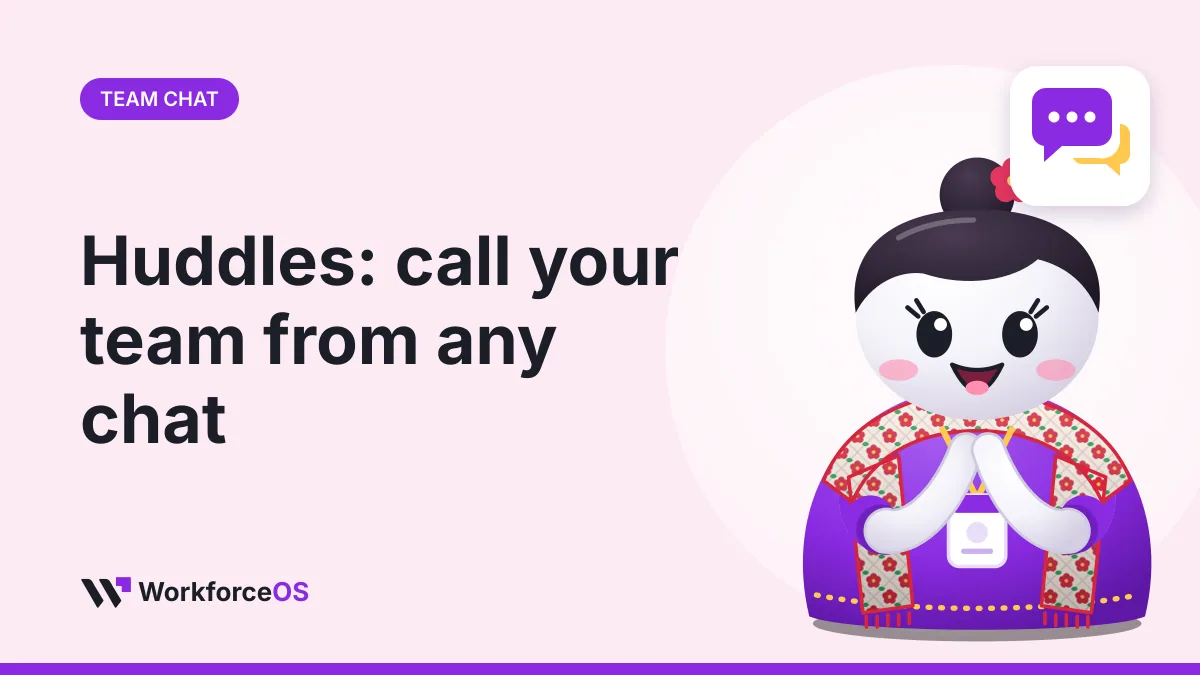
Huddles: call your team from any chat

Start a huddle in a channel or chat, join one that's going on, make it small while you work, or call anyone from the Huddles page.

TPThe Purple Bytes2026-11-111 min read
Try WorkforceOS free
Jaggu, the WorkforceOS mascot, excited beside chat bubbles: Huddles: call your team from any chat
Team chat: help from WorkforceOS
In this article⌄
  1. Start or join a huddle
  2. Keep working during the huddle
  3. Call anyone
  4. When someone calls you

See it with your own team

HR, projects, team chat and invoices in one app, set up for Nepal. Ask for a walkthrough or try it free.

Book a walkthroughStart free
In this article⌄
  1. Start or join a huddle
  2. Keep working during the huddle
  3. Call anyone
  4. When someone calls you

Start or join a huddle

  1. Open a channel or a direct message and click the headphones button at the top, then Start huddle. Everyone in the chat is called.
  2. If a huddle is already going on, the chat shows Huddle going on with a Join button, and the headphones button is green with how many are in it. Joining doesn't call everyone again.
  3. WorkforceOS asks for your camera and microphone the first time. Check them on the preview, then join.

Keep working during the huddle

Click the arrow at the top left: the huddle shrinks to a small window. Drag it anywhere by its top bar, move between pages, and tap it to make it big again. Leave ends it for you.

Reloading the page or closing the tab ends your part of the huddle, so WorkforceOS asks first.

Call anyone

Open Huddles at the top of Team, pick the people, give it a name if you like, and click Call. Only the people you picked can join.

When someone calls you

  • With WorkforceOS open on a computer, a card rings at the top right with Join and Decline.
  • With it open on a phone, the call fills the screen.
  • Otherwise a notification rings for about a minute, if you've turned on notifications on that device (phone notifications). On Android it has Join and Decline buttons; on iPhone, tap it to join.

Answering or declining on one device stops the ringing on the others.
Share this

FacebookXLinkedInWhatsApp Email
TP

Written by

The Purple Bytes

The Purple Bytes builds WorkforceOS in Lalitpur, Nepal, and writes these guides from the questions Nepali employers ask us every week.

HR and payroll tips for Nepal, once a month.

Deadlines, rule changes and short how-tos. Nothing else.

Once a month. Leave any time by replying "stop".

Keep reading

  • Jaggu, the WorkforceOS mascot, excited beside a calendar: Holiday, leave and unread-message emails

    2026-11-11 · 1 min read

    Holiday, leave and unread-message emails

  • Jaggu, the WorkforceOS mascot, thinking beside a question mark: Prepare your VAT return

    2026-11-11 · 1 min read

    Prepare your VAT return

  • Jaggu, the WorkforceOS mascot, smiling beside a task board: Link docs and files to a task

    2026-11-04 · 1 min read

    Link docs and files to a task

See all help centre posts

Try WorkforceOS with your own team

Free trial, no card needed. Set up in an afternoon.

Start free trialBook a demo
WorkforceOS

HR and payroll, projects, team chat and invoices. One app for the whole team.

HR and payroll tips for Nepal, once a month

Once a month. Leave any time by replying "stop".

Features

Attendance and clock-inClients, invoices and VATCompliance CenterDesktop monitoringHiring and onboardingLeave managementPassword vaultPayroll with SSF and TDSProjects and tasksSalary advances and staff loansSalary certificates and HR lettersShift and roster plannerTeam chat and video calls

Who it's for

AgenciesFactories and manufacturingIT companiesNGOs and INGOsSchools

Resources

BlogHelp centreWhat's newDashain allowance calculatorPricingvs separate HR, chat and project toolsvs spreadsheets
contact@workforceos.info+977 974-5941535Lalitpur, Nepal

WorkforceOS

© 2026 WorkforceOS · Made with 💜 by The Purple Bytes

Sign inSecurityStatusPrivacy PolicyTermsSitemap Back to top